
Wednesday, August 28, 2024

Wednesday, August 23, 2023
Accessing Data with JPA with memory-based h2 database
What You need
Java and OOP concepts (if not you can see my videos on java)
A favorite text editor or IDE : Intellj , Eclipse, VS code
Java 8 or later
Gradle 7.5+ or Maven 3.5+
Postman
Overview:
In this tutorial will walk you through the process of building Springboot application that uses Spring Data JPA to store and retrieve data using in memory h2 relation database. Spring Data JPA make it easier to integrated data access technologies i.e. relational and non-relational databases, map-reduce frameworks, and cloud-based data services through java code.
Features
• Powerful repository and custom object-mapping abstractions
• Dynamic query derivation from repository method names
• Implementation domain base classes providing basic properties
• Support for transparent auditing (created, last changed)
• Possibility to integrate custom repository code
• Easy Spring integration via JavaConfig and custom XML namespaces
• Advanced integration with Spring MVC controllers
• Experimental support for cross-store persistence
Architecture:
Draw a diagram
How to Accessing Data with JPA with New project or existing project?
navigate to https://start.spring.io to create a project.
Choose either Gradle or Maven and the language you want to use and language as java.
Click Dependencies and select Spring Data JPA and then H2 Database.
Click Generate. This will download a your project as Zip file.
Extract the project created in you desired folder.
Open the project in your favorite IDE
Create an Entity Class Customer and add desired fields with JPA annotation
Create CustomerRepository that extends CurdRepository which will provide the ability to perform CRUD operation into database.
Add findByLastName, findById custom methods to fetch records based on lastName and id
Create a CustomerController class that will accepts request from client to create, read, update and delete records.
Run the application
Using Postman send request to server and verify its working as expected
Summary
Congratulations! You have written a simple application that uses Spring Data JPA to save objects to and fetch them from a database, all without writing a concrete repository implementation.
Sunday, August 6, 2023
How to format code block in blogger? [Blogger Code Formatter]
- Open the code formatter from the link http://codeformatter.blogspot.com/
- Paste your source code block on the text area
- Customized the source code formatter option. (Default options worked for me )
- Click format source code button
- Copy paste the code and switch to html view in your blogger post and paste the html copied to your blogger.
Image Reference

Source Code Formatter for Blogger, Blogspot , Blog & Blogging, Format Formatting Tool
Source Code Beautifier And Formatter For Blogger and Websites, Format Source Code , Format Source code for blog or blogging & website, Online line source code formatter tool, blogger code format tool, Format source code for blogspot,Insert formatted source code
Tuesday, March 5, 2019
Install json-server to Mock your data with zero coding
Install JSON Server
npm install -g json-server
if there is any issue with permission on Mac/Linux
sudo npm install -g json-server
Create a db.json file with some data
{
"posts": [
{ "id": 1, "title": "json-server", "author": "typicode" }
],
"comments": [
{ "id": 1, "body": "some comment", "postId": 1 }
],
"profile": { "name": "typicode" }
}
Start JSON Server
json-server --watch db.json
Now if you go to http://localhost:3000/posts/1, you'll get
{ "id": 1, "title": "json-server", "author": "typicode" }
Resource: https://www.npmjs.com/package/json-server
Thursday, April 12, 2018
Getting Started with Postgres Docker image
sudo docker run --name dipen-postgres -p 5432:5432 -e POSTGRES_PASSWORD=<your-password> -d postgres Note: username = postgres
To run the image and expose the port 5442 of docker image to host port
sudo docker run -p 5432:5432 postgres
If you need to download postgresql client
sudo apt-get install postgresql-client
To connect the postgres data hosted in docker container with psql client
psql -h localhost -p 5432 -U postgres
https://docs.docker.com/samples/library/postgres/
https://zaiste.net/posts/docker_postgresql_how_to/
https://hub.docker.com/_/postgres/
https://docs.docker.com/engine/examples/postgresql_service/#connecting-from-your-host-system
Friday, March 16, 2018
Create React App
Step: 1 Creating react app npm package manager
sudo npm install -g create-react-app create-react-app my-app
Navigate into my-app directory
cd my-app
Start your application
npm start
Now your application is served and you will be able to see output on your browser
http://localhost:3000/
Note :
If you run into error specified below
ERROR: npm 5 is not supported yet
sudo npm i -g npm@4.6.1
Useful links
A re-introduction to JavaScript
Reactjs
Install Nodejs and NPM Ubuntu 17
sudo apt-get install python-software-properties curl -sL https://deb.nodesource.com/setup_9.x | sudo -E bash -
sudo apt-get install -y nodejsThen verify your npm and nodejs installation.
 node -v
 npm -v
Nodejs
Thursday, March 15, 2018
Share your docker image
Now it time to share your image across multiple platform and team using a docker registries. A registry is a collection of repositories, and a repository is a collection of images—sort of like a GitHub repository, except the code is already built.
Step 1: Make account on cloud.docker.com
Docker’s public registry is free and pre-configured, but there are many public ones to choose from.
Note that the docker CLI uses Docker’s public registry by default.
Login using docker CLI
docker login
After your are logged in successfully
Step 2: Tag the Image
Tagging image is good way of associating a local image with a repository on a registry.
For e.g. my-repo:my-first-image this puts the image in the my-repo repository and tag it as my-first-image.
docker tag image username/repository:tag
docker tag my-app lamadipen/my-repo:first
docker image ls
Step 3: Publish your image
sudo docker push lamadipen/my-repo:first
Now you can find your image on Docker Hub
Docker hub screen shot

Step 4: Pull the image and run image from the remote repository any where you want.
docker run -p 4000:80 username/repository:tag
docker run -p 4000:80 username/repository:tag
This command pull your image from the repository if image isn't available on local machine and run it on your .
Step 5: Check your container serving you application
You will get response from your application on the browser if you check the link in your browser.
http://localhost:8000/
Tuesday, March 13, 2018
Define your container with Dockerfile
Define a container with Dockerfile
Now its time to create your own custom environment using DockerFile. DockerFile behaves exactly the same wherever it runs enabling you to establish same standard configuration on dev, test and production environment.Step 1: Create a folder (in my case i have created my-docker-img folder)
Step 2: Create a Dockerfile inside the folder (I have created Dockerfile.txt)
Dockerfile.txt
 # Use an official Python runtime as a parent image
 FROM python:2.7-slim
 # Set the working directory to /app
 WORKDIR /app
 # Copy the current directory contents into the container at /app
 ADD . /app
 # Set proxy server, replace host:port with values for your servers (If your are behind proxy server)
 #ENV http_proxy host:port
 #ENV https_proxy host:port
 # Install any needed packages specified in requirements.txt
 RUN pip install --trusted-host pypi.python.org -r requirements.txt
 # Make port 80 available to the world outside this container
 EXPOSE 80
 # Define environment variable
 ENV NAME World
 # Run app.py when the container launches
 CMD ["python", "app.py"]
Step 3: Create app.py and requirement.txt specified in Docker file in the same folder.
app.py file is your python application that you want to deploy
app.py
 from flask import Flask
 from redis import Redis, RedisError
 import os
 import socket
 # Connect to Redis
 redis = Redis(host="redis", db=0, socket_connect_timeout=2, socket_timeout=2)
 app = Flask(__name__)
 @app.route("/")
 def hello():
   try:
     visits = redis.incr("counter")
   except RedisError:
     visits = "<i>cannot connect to Redis, counter disabled</i>"
   html = "<h3>Hello {name}!</h3>" \
       "<b>Hostname:</b> {hostname}<br/>" \
       "<b>Visits:</b> {visits}"
   return html.format(name=os.getenv("NAME", "world"), hostname=socket.gethostname(), visits=visits)
 if __name__ == "__main__":
   app.run(host='0.0.0.0', port=80)
requirements.txt
 Flask
 Redis
Note:
When the Dockerfile is built into an image, Dockerfile’s ADD command will add app.py into the image, and the app is served over HTTP with help the EXPOSE command which expose port 80. PIP command install python dependency libraries specified on requirements.txt file
Build the app
Now execute the build command from top of the directory. This creates a Docker image with tag using -t so it has a friendly name.In my case directory is /Documents/my-docker-img and image name is my-app
docker build -t my-app .
docker image ls
Run the app
Run the app, by mapping your machine’s port 8000 to the container’s published port 80 using -p docker run -p 4000:80 friendlyhello
http://localhost:8000/
docker run -d -p 4000:80 my-app
docker container ls
sudo docker container stop c1081125c6e9
Next Share your docker image
Useful links
https://docs.docker.com/get-started/part2/#log-in-with-your-docker-id
Installing Docker in Ubuntu
sudo apt-get update
  sudo apt-get install \
   apt-transport-https \
   ca-certificates \
   curl \
   software-properties-common
curl -fsSL https://download.docker.com/linux/ubuntu/gpg | sudo apt-key add -
sudo apt-key fingerprint 0EBFCD88
 sudo add-apt-repository \
   "deb [arch=amd64] https://download.docker.com/linux/ubuntu \
   $(lsb_release -cs) \
   stable"
Update the apt package index
sudo apt-get update
sudo apt-get install docker-ce
sudo docker run hello-world
If you need to uninstall Docker installed
sudo apt-get purge docker-ce
sudo rm -rf /var/lib/docker
docker image ls
docker container --help
Helpful links
https://docs.docker.com/get-started/#conclusion-of-part-one
https://github.com/docker/labs/tree/master/beginner/
Friday, May 5, 2017
JMS implementation
Step 1: Create a simple maven project using you favorite IDE. I am using IntelliJ
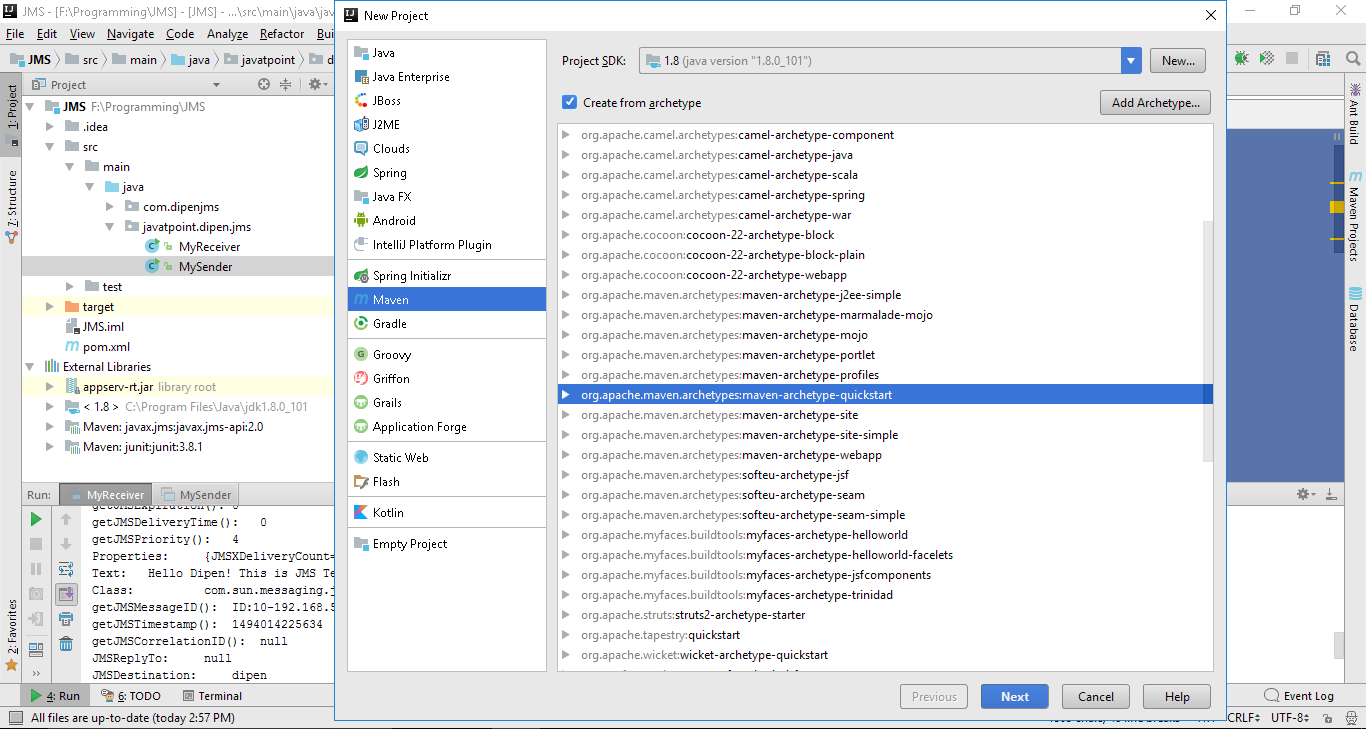
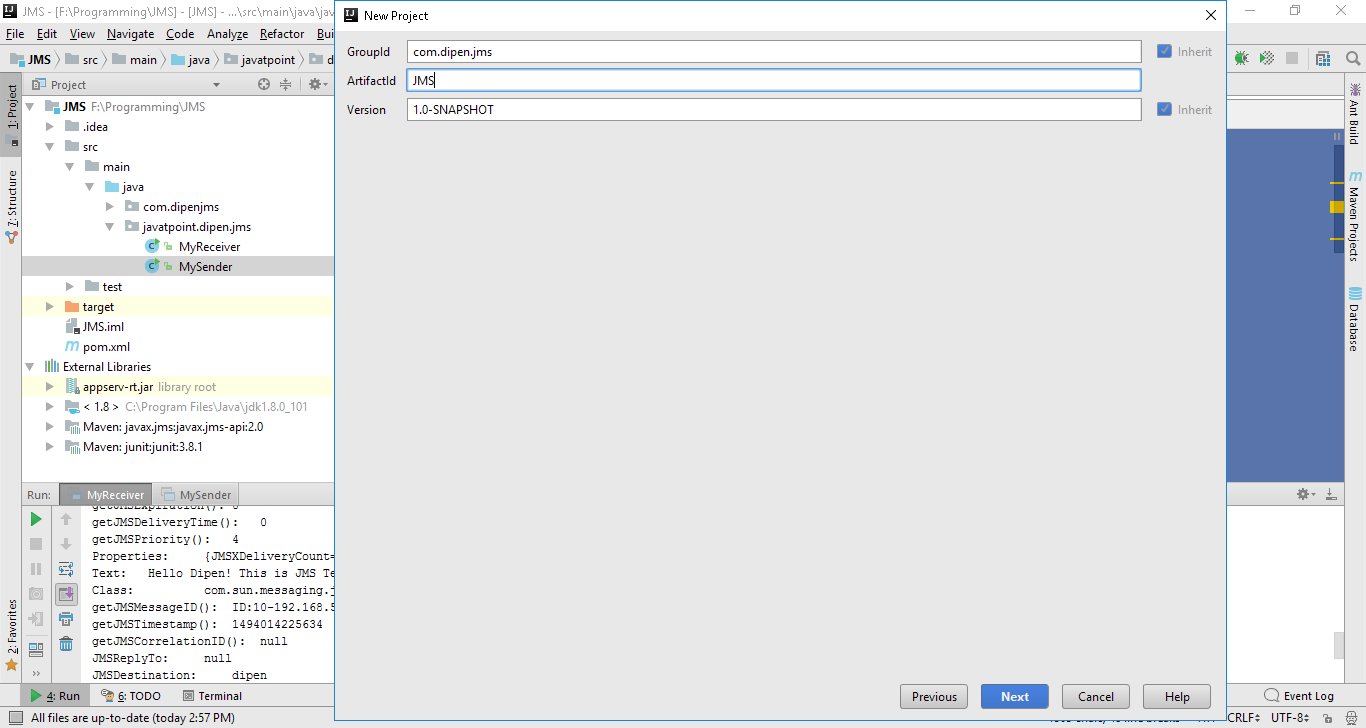
Below I have mentioned dependencies required for the project. Add the dependency in your pom.xml
pom.xml
 <project xmlns="http://maven.apache.org/POM/4.0.0" xmlns:xsi="http://www.w3.org/2001/XMLSchema-instance"
  xsi:schemaLocation="http://maven.apache.org/POM/4.0.0 http://maven.apache.org/xsd/maven-4.0.0.xsd">
  <modelVersion>4.0.0</modelVersion>
  <groupId>com.dipenjms</groupId>
  <artifactId>JMS</artifactId>
  <version>1.0-SNAPSHOT</version>
   <build>
     <plugins>
       <plugin>
         <groupId>org.apache.maven.plugins</groupId>
         <artifactId>maven-compiler-plugin</artifactId>
         <configuration>
           <source>1.7</source>
           <target>1.7</target>
         </configuration>
       </plugin>
     </plugins>
   </build>
   <packaging>jar</packaging>
  <name>JMS</name>
  <url>http://maven.apache.org</url>
  <properties>
   <project.build.sourceEncoding>UTF-8</project.build.sourceEncoding>
  </properties>
  <dependencies>
   <!-- https://mvnrepository.com/artifact/javax.jms/javax.jms-api -->
   <dependency>
    <groupId>javax.jms</groupId>
    <artifactId>javax.jms-api</artifactId>
    <version>2.0</version>
   </dependency>
   <dependency>
    <groupId>junit</groupId>
    <artifactId>junit</artifactId>
    <version>3.8.1</version>
    <scope>test</scope>
   </dependency>
  </dependencies>
 </project>
Step 2:
Create a MyReceiver class which is a message consumer.
Note: java:comp/DefaultJMSConnectionFactory in initialContext.lookup() must match name Logical JNDI Name in server and also queue name.
 package javatpoint.dipen.jms;
 import javax.jms.*;
 import javax.naming.InitialContext;
 import javax.naming.NamingException;
 /**
  * Created by dipen on 5/5/2017.
  */
 public class MyReceiver {
   public static void main(String[] args) {
     try {
       InitialContext initialContext = new InitialContext();
       QueueConnectionFactory queueConnectionFactory= (QueueConnectionFactory) initialContext.lookup("java:comp/DefaultJMSConnectionFactory");
       QueueConnection queueConnection = queueConnectionFactory.createQueueConnection();
       queueConnection.start();
       QueueSession queueSession = queueConnection.createQueueSession(false, Session.AUTO_ACKNOWLEDGE);
       Queue queue = (Queue) initialContext.lookup("myQueue");
       QueueReceiver queueReceiver = queueSession.createReceiver(queue);
       final TextMessage[] textMessage = new TextMessage[1];
       queueReceiver.setMessageListener(   new MessageListener(){
         @Override
         public void onMessage(Message message) {
           System.out.print("Inside Message Receiver" + message);
           textMessage[0] = (TextMessage) message;
         }
       });
       System.out.print(textMessage[0]);
       queueConnection.close();
     } catch (NamingException | JMSException e) {
       e.printStackTrace();
     }
   }
 }
Step 3:
Create a MySender class which is a message producer.
MySender.java
 package javatpoint.dipen.jms;
 import javax.jms.*;
 import javax.naming.Context;
 import javax.naming.InitialContext;
 import javax.naming.NamingException;
 import javax.xml.soap.Text;
 import java.util.Properties;
 /**
  * Created by dipen on 5/5/2017.
  */
 public class MySender {
   public static void main(String[] args) {
     Properties env = new Properties( );
     env.put(Context.INITIAL_CONTEXT_FACTORY,
         "com.sun.jndi.fscontext.RefFSContextFactory");
     /* env.put(Context.PROVIDER_URL,
         "ts://localhost:4848");*/
     try {
       InitialContext initialContext = new InitialContext();
       QueueConnectionFactory queueConnectionFactory= (QueueConnectionFactory) initialContext.lookup("java:comp/DefaultJMSConnectionFactory");
       QueueConnection queueConnection = queueConnectionFactory.createQueueConnection();
       queueConnection.start();
       QueueSession queueSession = queueConnection.createQueueSession(false, Session.AUTO_ACKNOWLEDGE);
       Queue queue = (Queue) initialContext.lookup("myQueue");
       QueueSender queueSender = queueSession.createSender(queue);
       TextMessage textMessage = queueSession.createTextMessage();
       textMessage.setText("Hello Dipen! This is JMS Testing");
       queueSender.send(textMessage);
       queueConnection.close();
     } catch (NamingException | JMSException e) {
       e.printStackTrace();
     }
   }
 }
Step 4:
Install Glassfish4 Server from official site or Click Here and unzip in your desired directory.
Note: Download Java EE 7 Full Platform version.
Open bin directory from recently extracted Server directory and run asadmin.bat
For me it is: F:\IDE\Servers\glassfish4\bin
Then start the server using the command: start-domain

Now on your browser load the server admin page :http://localhost:4848/common/index.jsf

Step 5:
Click on the JMS Resource -> Connection Factories -> New, now write the pool name and select the Resource Type as QueueConnectionFactory then click on ok button.

Click on the JMS Resource -> Destination Resources -> New, now write the JNDI name and physical destination name then click on ok button.

Step 6: Run both MySender and MyReceiver.
Note : If there is error while running the project, add javaee.jar and appserv-rt.jar into your library from <yourpath>\glassfish\lib
For me it's: F:\IDE\Servers\glassfish4\glassfish\lib
Sender output

Receiver output

Download Source for GitHub : Click Here
Sunday, April 23, 2017
Installing and setting Java path
Download Java
Download lastest release of java form the official site

Install the downloaded file
The file is installed into follwing location C:\Program Files\Java
Then, right click on mycomputer


Now, click on Advance System Setting, screen below appears

Click on Envirnment Variables, another window is displayed

Click New button below the upper box and secreen below will be displayed

Insert following into corrosponding textbox
Variable name: JAVA_HOME
Variable Value: C:\Program Files\Java\jdk1.7.0_07

In lower box select Path and click Edit button, at the end after “;” paste full path to bin folder (Note :- keep other content in box as it is and end the line with “;”)
Variable Value: C:\Program Files\Java\jdk1.7.0_07\bin;

Now, after all this process check that Java installation and setting is successfully completed
Open command and run follwing syntax
C:\Java -version and you will see screen below if all the setting are correct

Check code quality with PMD
1. Open STS -> click on Help

2. Click ->Install New software

3. Click Add Button and screen blow is dispalyed
Name : PMDplugin
Location: http://sourceforge.net/projects/pmd/files/pmd-eclipse/update-site/
4. Check on PMD for Eclipse 3.
 5. Click -> Next
6. Agree the agreement and click -> Finish

7. Wait for Eclipse to download the required jar files, then click Install
8. Restart the workbench. This will load the PMD plugin.
9. Navigate to Window | Show View | Other...

10. Select PMD |select -> Violations overview

Opearating PMD in STS (How to usePMD)
1. In the Package Explorer right-click on Project and select PMD | Check Code With PMD

2. PMD Violations view notice a list of violations

Installing TortoiseSVN and integrating with STS
Install TortoiseSVN
1. Download TortoiseSVN from following link ( download the latest stable release of TortoiseSVN)
http://tortoisesvn.net/downloads.html

1. Click and run the downloaded file, continue the installation process

Using TortoiseSVN client on Windows
Verifying Installation:
In order to verify the successful installation of the Tortoise SVN client right click on any folder and you can see the TORTOISE SVN TASKS as shown below:

Check out from SVN Repository:
Step1: create the folder where you want to check out the files/folder from SVN server repository.
Step2: right click the folder and click on SVN Checkout. Now you can see the screen like Figure 1.
Figure 1: SVN Check out screen
Step 3: In above picture Figure 1. URL is the SVN server repository url to access the files and the Checkout directory is the directory where you are going to download (checkout) the files. After specifying the url and directory click OK.
Step4: After step 3 you may be asked for your SVN username and password. Enter the valid username and password and proceed.
Step 4: now you can see the files checkout from the SVN server repository as shown below figure 2
Figure 2: checkout from svn screen
Configuring TortoiseSVN
TortoiseSVN generally requires no configuration. To access a repository, a checkout operation should be performed. Right-click in the directory to perform the checkout, and select 'SVN Checkout' from the menu. Then, access the repository via URL, similar to how a web-browser operates. This URL will look like:
https://PROJECTNAME.svn.sourceforge.net/svnroot/PROJECTNAME
Though, typically you would want to specify the trunk to be checked out. Like this:
https://PROJECTNAME.svn.sourceforge.net/svnroot/PROJECTNAME/trunk
PROJECTNAME is the project UNIX name, as specified on the summary page for the project in question. The project, 'filezilla', for example, would use the following URL to checkout the trunk of their SVN repository:
https://filezilla.svn.sourceforge.net/svnroot/filezilla/trunk
Upon first connection to the SourceForge.net SVN server, you may be prompted to accept the 'server certificate' for svn.sourceforge.net, you should 'Accept Permanently' the certificate.
After initial checkout, if you change a file and want to commit the change back to the repository, you will be prompted for your username and password. This will be the username and password for the SourceForge.net website.
Example:
Integrating TortoiseSVN client on STS (subclipse)
1. Open STS -> click on Help

2. Click ->Install New software

3. Click Add Button and screen blow is dispalyed
Name : trotoiseSvn
Location: http://subclipse.tigris.org/update_1.10.x
For further information visit
http://subclipse.tigris.org/servlets/ProjectProcess?pageID=p4wYuA

4. STS automatically downloads all the required plugins, after that restart the STS and refer to section below for the tips to operate the plugin.
Opearating subclipse from STS
1. Right click on Project Explorer and
2. click -> Import

3. Choose SVN menu and click -> checkout Projects for SVN -> Next Button
4. If its first time select first option then -> Next Button
Provide the link of your SVN server -> Next Button
i.e. my current server location is https://windows-2kj6rz/svn/

Else you are provided with list of projects from previous server setting and choose a project to work on.
5. After that following screen will be displayed, choose appropriate folder and project you want and click -> Next Button
6. If you want further setting modify as you need, but for our purpose default is alright thus -> Finish Button
Set default selected value in struts2 select tag
Add the code below in jsp file.
      <!--name attribute inside select tag must be a variable in action class with getter/setter -->
      <!-- test variable sets the value of selected item in action class -->
      <select name="test">
           <!-- name attribute could be anything you want but value attribute must be a model class variable-->
           <s:set name="lead_string_LS_ID" value="MasterDataModel.string_LS_ID" />
                <!-- value attribute must be a list to iterate, status (an instanceof IteratorStatus will be pushed into stack upon each iteration)or result -->
                <!-- var Name used to reference the value pushed into the Value Stack (my list contain leadSource_String_Id)-->
                <s:iterator value="leadSource_list" status="result" var="leadSource_String_Id">
                          <!--#lead_string_LS_ID is value taken from <set> tag above. Note # must be in-front of the name
                               leadSource_String_Id is element specified in var of <iterator> tag
                          -->
                          <s:if test='(#lead_string_LS_ID.equals(leadSource_String_Id))'>
                               <option value="<s:property value='leadSource_String_Id'/>" selected="selected">
                                    <s:property value="leadSource_String_Name" />
                               </option>
                          </s:if>
                          <s:else>
                               <option
                                    value="<s:property value='leadSource_String_Id'/>">
                                    <s:property value="leadSource_String_Name" />
                               </option>
                          </s:else>
                </s:iterator>
      </select>
Saturday, April 22, 2017
Android Form Validation
Click Here to download Source Code
 |
| Fig: Form Validation |
FormValidationExampleActivity.java
 package com.rnd.action;
 import java.util.regex.Matcher;
 import java.util.regex.Pattern;
 import android.app.Activity;
 import android.os.Bundle;
 import android.util.Log;
 import android.view.View;
 import android.widget.Button;
 import android.widget.EditText;
 import android.widget.Toast;
 public class FormValidationExampleActivity extends Activity{
   /** Called when the activity is first created. */
      EditText username, amount;
       Button btn;
      @Override
   public void onCreate(Bundle savedInstanceState)
      {
     super.onCreate(savedInstanceState);
     setContentView(R.layout.main);
        username = (EditText) findViewById(R.id.username);
     amount = (EditText) findViewById(R.id.amount);
        btn = (Button) findViewById(R.id.button1);
     btn.setOnClickListener(new View.OnClickListener() {
                public void onClick(View v) {
                     Log.d("Checking value of textbox", amount.getText().toString());
               if(formValidator(username.getText().toString()) == true)
               {
                    Toast.makeText(FormValidationExampleActivity.this, "Valid Data", Toast.LENGTH_LONG).show();
               }
               else
               {
                    Toast.makeText(FormValidationExampleActivity.this, "Name field is required", Toast.LENGTH_LONG).show();
               }
                }
           });
      }
      public boolean formValidator(String values)
      {
           if((values.trim()).equals("") || values.equals(null))
           {
                return false;
           }
           else
           {
                return true;
           }
      }
      public void checkemail(String email)
      {
        Pattern pattern = Pattern.compile(".+@.+\\.[gmail.com]+");
        Matcher matcher = pattern.matcher(email);
        boolean emailcheck = matcher.matches();
      }
 }
Main.xml
 <?xml version="1.0" encoding="utf-8"?>
 <LinearLayout xmlns:android="http://schemas.android.com/apk/res/android"
   android:layout_width="fill_parent"
   android:layout_height="fill_parent"
   android:orientation="vertical" >
   <TextView
     android:layout_width="fill_parent"
     android:layout_height="wrap_content"
     android:text="@string/hello" />
   <EditText
     android:id="@+id/username"
     android:layout_width="match_parent"
     android:layout_height="wrap_content"
     android:ems="10"
      >
     <requestFocus />
   </EditText>
   <EditText
     android:id="@+id/amount"
     android:layout_width="match_parent"
     android:layout_height="wrap_content"
     android:ems="10"
     android:inputType="numberDecimal" />
   <Button
     android:id="@+id/button1"
     android:layout_width="wrap_content"
     android:layout_height="wrap_content"
     android:text="Ok" />
 </LinearLayout>
Android ListView onItemClick Event


ListExampleActivity.java
 package com.rnd.action;
 import java.util.ArrayList;
 import android.app.Activity;
 import android.os.Bundle;
 import android.util.Log;
 import android.util.SparseBooleanArray;
 import android.view.KeyEvent;
 import android.view.MotionEvent;
 import android.view.View;
 import android.widget.AdapterView;
 import android.widget.ArrayAdapter;
 import android.widget.Button;
 import android.widget.EditText;
 import android.widget.ListView;
 import android.widget.Toast;
 public class ListExampleActivity extends Activity {
   /** Called when the activity is first created. */
   ListView lv;
   String[] outputStrArr;
   ArrayAdapter<String> aa = null;
      @Override
   public void onCreate(Bundle savedInstanceState) {
     super.onCreate(savedInstanceState);
     setContentView(R.layout.main);
     lv = (ListView) findViewById(R.id.listView_user);
     final EditText myEditText = (EditText) findViewById(R.id.myeditText);
     final ArrayList<String> todoItems = new ArrayList<String>();
     aa = new ArrayAdapter<String>(this, android.R.layout.simple_list_item_1,todoItems);
     lv.setAdapter(aa);
     myEditText.setOnKeyListener(new View.OnKeyListener() {
                public boolean onKey(View v, int keyCode, KeyEvent event) {
                     // TODO Auto-generated method stub
                     if(event.getAction()== KeyEvent.ACTION_DOWN)
                     {
                          if(keyCode == KeyEvent.KEYCODE_DPAD_CENTER)
                          {
                               todoItems.add(0,myEditText.getText().toString());
                               aa.notifyDataSetChanged();
                               myEditText.setText("");
                               return true;
                          }
                     }
                     return false;
                }
           });
     lv.setOnItemClickListener(new AdapterView.OnItemClickListener() {
                public void onItemClick(AdapterView<?> arg0, View arg1, int arg2,
                          long arg3) {
                     //Log.i("Selected Item in list", arg1.toString());
                     String test = (String) lv.getAdapter().getItem(arg2);
                     Log.i("Selected Item in list", test);
                     Toast.makeText(ListExampleActivity.this,test ,Toast.LENGTH_LONG);
                }
           });
     }
 }
Main.xml
 <?xml version="1.0" encoding="utf-8"?>
 <LinearLayout xmlns:android="http://schemas.android.com/apk/res/android"
   android:layout_width="fill_parent"
   android:layout_height="fill_parent"
   android:orientation="vertical" >
   <TextView
     android:layout_width="fill_parent"
     android:layout_height="wrap_content"
     android:text="@string/hello" />
   <EditText
     android:id="@+id/myeditText"
     android:layout_width="match_parent"
     android:layout_height="wrap_content"
     android:ems="10" >
     <requestFocus />
   </EditText>
   <ListView
     android:id="@+id/listView_user"
     android:layout_width="match_parent"
     android:layout_height="wrap_content"
     android:clickable="true"
      >
   </ListView>
 </LinearLayout>
AndroidManifest.xml
 <?xml version="1.0" encoding="utf-8"?>
 <manifest xmlns:android="http://schemas.android.com/apk/res/android"
   package="com.rnd.action"
   android:versionCode="1"
   android:versionName="1.0" >
   <uses-sdk android:minSdkVersion="8" />
   <application
     android:icon="@drawable/ic_launcher"
     android:label="@string/app_name" >
     <activity
       android:name=".ListExampleActivity"
       android:label="@string/app_name" >
       <intent-filter>
         <action android:name="android.intent.action.MAIN" />
         <category android:name="android.intent.category.LAUNCHER" />
       </intent-filter>
     </activity>
   </application>
 </manifest>
List with checkbox
 |
| Fig: Android List with checkbox |
 | ||||
Fig:
|
ListCheckboxExampleActivity.java
 package com.rnd.action;
 import java.util.ArrayList;
 import android.app.Activity;
 import android.os.Bundle;
 import android.util.Log;
 import android.util.SparseBooleanArray;
 import android.view.KeyEvent;
 import android.view.View;
 import android.widget.ArrayAdapter;
 import android.widget.Button;
 import android.widget.EditText;
 import android.widget.ListView;
 public class ListCheckboxExampleActivity extends Activity {
   /** Called when the activity is first created. */
   ListView lv;
   String[] outputStrArr;
   ArrayAdapter<String> aa = null;
      @Override
   public void onCreate(Bundle savedInstanceState) {
     super.onCreate(savedInstanceState);
     setContentView(R.layout.main);
     lv = (ListView) findViewById(R.id.listView_user);
     final EditText myEditText = (EditText) findViewById(R.id.myeditText);
     final ArrayList<String> todoItems = new ArrayList<String>();
     aa = new ArrayAdapter<String>(this, android.R.layout.simple_list_item_multiple_choice,todoItems);
     lv.setAdapter(aa);
     myEditText.setOnKeyListener(new View.OnKeyListener() {
                public boolean onKey(View v, int keyCode, KeyEvent event) {
                     // TODO Auto-generated method stub
                     if(event.getAction()== KeyEvent.ACTION_DOWN)
                     {
                          if(keyCode == KeyEvent.KEYCODE_DPAD_CENTER)
                          {
                               todoItems.add(0,myEditText.getText().toString());
                               aa.notifyDataSetChanged();
                               myEditText.setText("");
                               return true;
                          }
                     }
                     return false;
                }
           });
     Button btn_ok = (Button) findViewById(R.id.button_ok);
     btn_ok.setOnClickListener(new View.OnClickListener() {
                public void onClick(View v) {
                     SparseBooleanArray checked = lv.getCheckedItemPositions();
               ArrayList<String> selectedItems = new ArrayList<String>();
               for (int i = 0; i < checked.size(); i++) {
                 // Item position in adapter
                 int position = checked.keyAt(i);
                 // Add sport if it is checked i.e.) == TRUE!
                 if (checked.valueAt(i))
                   selectedItems.add(aa.getItem(position));
               }
               outputStrArr = new String[selectedItems.size()];
               aa.clear();
               for (int i = 0; i < selectedItems.size(); i++) {
                 outputStrArr[i] = selectedItems.get(i);
                 Log.i("test data" + outputStrArr[i], null, null);
                 aa.add(selectedItems.get(i));
               }
                }
           });
   }
 }
main.xml
 <?xml version="1.0" encoding="utf-8"?>
 <LinearLayout xmlns:android="http://schemas.android.com/apk/res/android"
   android:layout_width="fill_parent"
   android:layout_height="fill_parent"
   android:orientation="vertical" >
   <TextView
     android:layout_width="fill_parent"
     android:layout_height="wrap_content"
     android:text="@string/hello" />
   <EditText
     android:id="@+id/myeditText"
     android:layout_width="match_parent"
     android:layout_height="wrap_content"
     android:ems="10" >
     <requestFocus />
   </EditText>
   <ListView
     android:id="@+id/listView_user"
     android:layout_width="match_parent"
     android:layout_height="wrap_content"
     android:choiceMode="multipleChoice"
      >
   </ListView>
   <Button
     android:id="@+id/button_ok"
     android:layout_width="wrap_content"
     android:layout_height="wrap_content"
     android:text="Button" />
 </LinearLayout>
AndroidManifest.xml
 <?xml version="1.0" encoding="utf-8"?>
 <manifest xmlns:android="http://schemas.android.com/apk/res/android"
   package="com.rnd.action"
   android:versionCode="1"
   android:versionName="1.0" >
   <uses-sdk android:minSdkVersion="8" />
   <application
     android:icon="@drawable/ic_launcher"
     android:label="@string/app_name" >
     <activity
       android:name=".ListCheckboxExampleActivity"
       android:label="@string/app_name" >
       <intent-filter>
         <action android:name="android.intent.action.MAIN" />
         <category android:name="android.intent.category.LAUNCHER" />
       </intent-filter>
     </activity>
   </application>
 </manifest>